Blog · July 21, 2026
How to remove LinkedIn connections (and why there's no bulk delete)
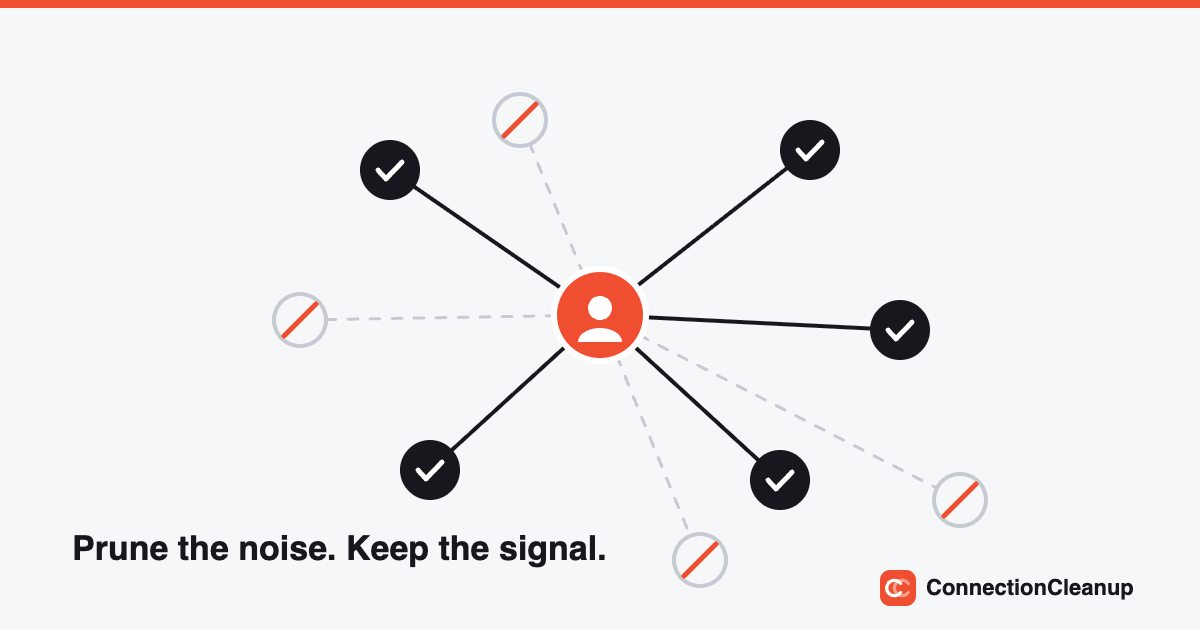
The short version: LinkedIn has no bulk-remove feature, removing a connection is silent (the other person is never notified), and the connection cap is 30,000. Removals are one click per person, from their profile or your connections list. The only way to prune at scale safely is to decide who goes using the data export LinkedIn gives you, then make each removal yourself. Everything below is the detail.
What actually happens when you remove a connection
Removing a connection downgrades you both from 1st-degree to whatever degree your mutual network implies. Three things follow. First, it's silent: LinkedIn sends no notification, and the other person would only notice by visiting your profile. Second, any endorsements and recommendations between you are withdrawn and don't automatically come back if you reconnect. Third, your message history stays in your inbox, so context isn't lost.
How to remove one connection
From their profile: open the More menu and choose Remove connection. From your list: My Network, then Connections, find the person, open the three-dot menu, remove. If anything moves in LinkedIn's UI, their help center has the current steps.
Why there's no bulk delete, and why automation is a trap
LinkedIn has never shipped multi-select removal, and the gap has spawned a cottage industry of browser extensions and bots that click the Remove button for you. Don't use them. LinkedIn's User Agreement prohibits software that automates activity on the site, the platform actively detects bot-like clicking patterns, and accounts get restricted for it. An afternoon saved is not worth your account.
The safe way to prune at scale: work from your export
Every LinkedIn member can download their data for free: Settings & Privacy, Data privacy, Get a copy of your data, or the direct link at linkedin.com/mypreferences/d/download-my-data. Tick Connections only and the file usually arrives within minutes (our step-by-step instructionscover it). You get a Connections.csv with every connection's name, company, title, profile URL, and connection date.
That file is the whole game. Instead of scrolling an infinite list inside LinkedIn, you review a spreadsheet: sort by title for retired contacts and student-era connections, sort by date for people from a career you no longer have, group by company for duplicates. Decide who goes, then work through the list making each removal yourself on LinkedIn. All the analysis happens off-platform with data you own, so there's nothing for LinkedIn to object to; the removals are just you, clicking LinkedIn's own button.
You can do the analysis by hand with our free DIY spreadsheet recipes, or let ConnectionCleanup do it in about 30 seconds: it flags retired profiles, empty profiles, student-era titles, stale connections, and duplicates, each with a confidence level, then gives you a guided checklist with built-in pacing guardrails so even your manual clicking stays comfortably human-speed. The free scan shows your topline numbers without signing up for anything.
Who to remove (a sane starting rule set)
The point of pruning isn't a smaller number; it's a feed and a network that reflect your current work. The removals almost nobody regrets: profiles with no title and no company, people whose title still says student or intern from five years ago, duplicates, the retired (unless they matter to you personally), and connections from a career phase that no longer matches where you're going. When someone changes jobs, that's usually a reason to keep them, and often a reason to reach out.
Frequently asked questions
Can you remove LinkedIn connections in bulk?
No. LinkedIn has never offered a bulk-remove or multi-select delete feature. Every removal is one click per person, either from their profile or from your connections list. Tools that claim to bulk-remove for you do it by automating clicks on LinkedIn's site, which LinkedIn's User Agreement prohibits and its detection systems actively look for.
Does LinkedIn notify someone when you remove them?
No. Removing a connection is silent. The other person is not notified; they would only notice by visiting your profile and seeing you're no longer a 1st-degree connection.
What happens when you remove a LinkedIn connection?
You each lose 1st-degree access to the other's network and posts. Any endorsements and recommendations between you are withdrawn, and they don't automatically return if you reconnect later. Your message history remains in your inbox.
How many connections does LinkedIn allow?
LinkedIn caps 1st-degree connections at 30,000. There is no way to raise the cap; the only way to make room, and the only way to keep your feed relevant, is to remove connections you no longer need.
Is it safe to use automation tools to remove connections?
No. LinkedIn's User Agreement prohibits bots, scrapers, and browser extensions that automate activity on the site, and accounts get restricted for it. The safe approach keeps all automation off LinkedIn: analyze the data export LinkedIn gives you, decide who to remove, then make each removal yourself with LinkedIn's own button.
How do I see all my LinkedIn connections in one list?
Request your free data export: Settings & Privacy, Data privacy, Get a copy of your data, tick Connections. LinkedIn sends you a Connections.csv with every connection's name, company, title, profile URL, and the date you connected. A connections-only export usually arrives within minutes.
See what's in your network first
The free scan reads your export in your browser and shows you the topline numbers in 30 seconds. Nothing is uploaded.
Run the free scan